
Instructions for Using Zoom Captions
When joining one of IIRRM’s livestream seminars, you may have the ability to view closed captions during live or recorded sessions. You can also choose to translate captions into your preferred language.
The languages available for translation are listed here: Zoom translated captions language list.
Zoom captions and translations are automatically generated and depend on many variables, so may not be fully accurate. Additional information from Zoom, including mobile instructions, is available here.
Live Sessions
To translate closed captions during a live session, join the Zoom meeting using the link you received from IIRRM or through the IIRRM portal.
Step 1: Turn on captions
Within the Zoom application, locate the Zoom menu at the bottom of your screen. Select “Show Captions.”

If “Show Captions” does not appear on your screen, you may first need to select “More” or the three dots from the Zoom menu, then choose “Show Captions.”


Step 2: Enable translation
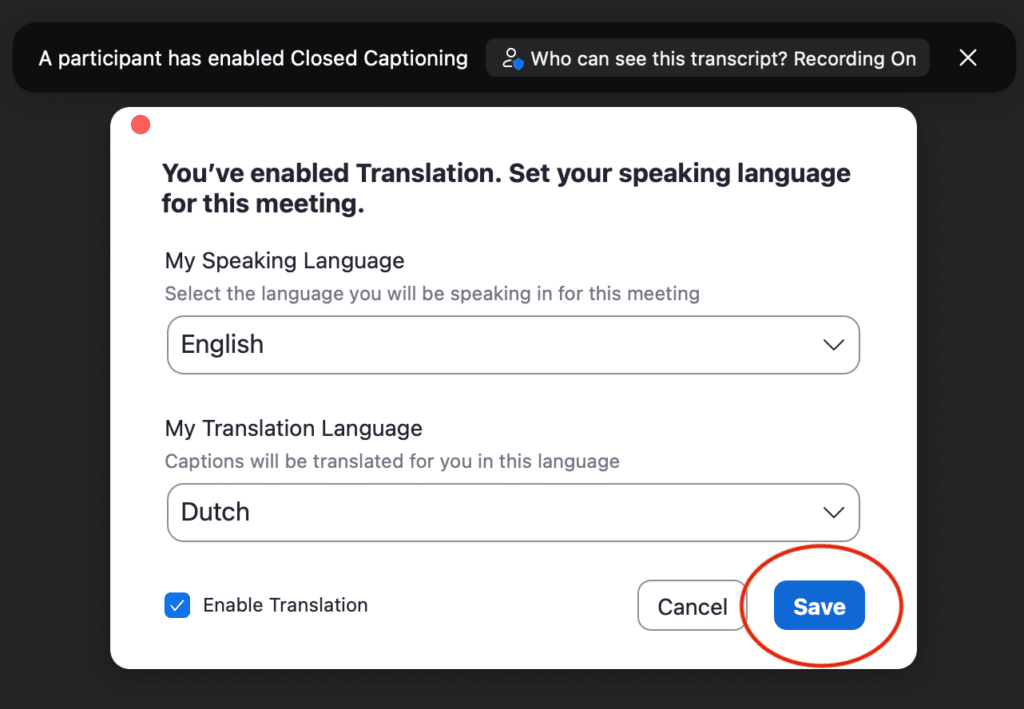
Next, a pop-up window will appear. Select “Enable Translation.”
Step 3: Choose your preferred language
You can now select the translation language of your choice from the dropdown menu and click “Save.” The captions will then appear in your preferred language.
Step 4: Show both original and translated captions
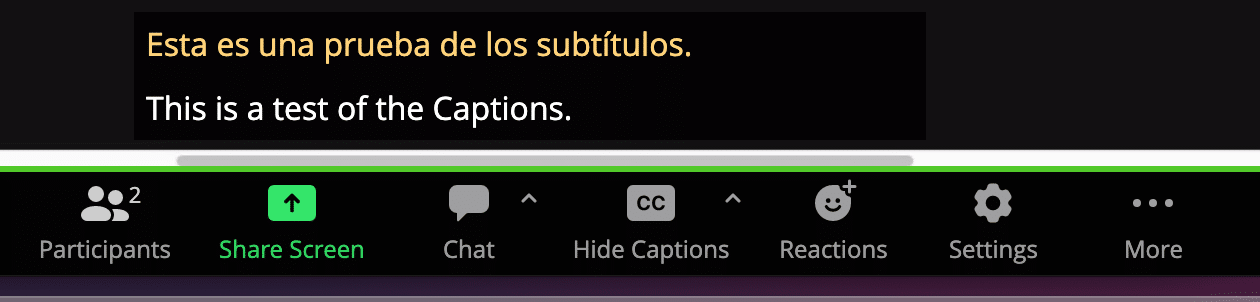
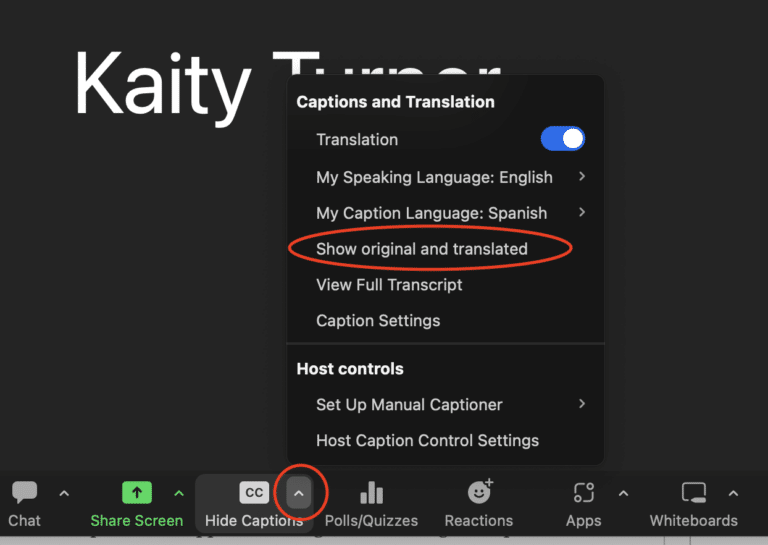
You can also choose to see both the English captions and the translated captions at the same time. Click the arrow next to “Hide Captions” and select “Show original and translated.”
The translated captions will appear in orange, and the English captions will appear in white.